Field notes from Pilcrow: how a small script keeps a snippet current, and how to build your own.
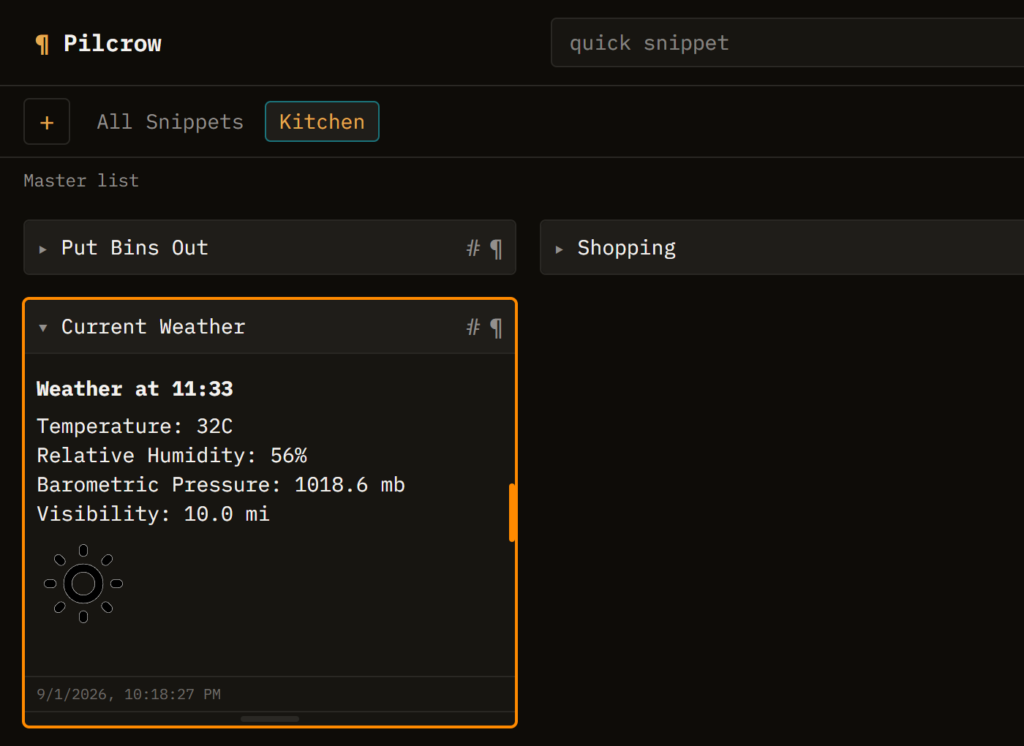
Ask ten people how they check the weather and you will get ten different answers: a phone widget, a browser tab left open all day, shouting at a speaker on the kitchen counter. WxFeeder’s answer is a stranger one. It is a single Pilcrow snippet that quietly rewrites itself every thirty minutes, its border shifting from blue through to red as the temperature climbs, so that the answer is already sitting there before you have thought to look for it.
This post is in two halves. The first walks through building your own copy of WxFeeder from nothing, including one step that has nothing to do with writing code at all: asking Claude to fetch an internal ID for you, in plain English, because Pilcrow never shows it to you directly. The second half turns that same trick inside out, and shows how the pattern behind WxFeeder can be pointed at almost anything else you might like Pilcrow to keep track of.
Prerequisites
Node.js 18 or later is the only thing you need before starting. WxFeeder leans on the fetch API built into modern Node, so anything older will not run it. A quick node --version in a terminal will tell you what you are currently running; if the answer is nothing at all, nodejs.org has installers for Windows, macOS and Linux, and the current LTS release is the sensible one to reach for.
1. Get the project
There is refreshingly little to install. WxFeeder is a plain Node.js MCP client, with no build step and no framework standing between you and the code:
git clone https://github.com/guruchill/wxfeeder.git
cd wxfeeder
npm install
2. Configure it
Copy config.example.json to config.local.json. This is the only file you will need to touch, and it holds exactly four things:
{
  "pilcrowApiKey": "…from Settings → Advanced, below",
  "snippetId": "…from Claude, next step",
  "stationId": "…find yours below",
  "timezone": "America/Chicago"
}
Two of them are simply about where you happen to live:
- stationId is the identifier of the NWS observation station nearest to you. Search your location at weather.gov and read off whichever station its current-conditions panel cites.
- timezone is an IANA zone name, so the timestamp printed on the card matches your own wall clock rather than a server somewhere in Virginia.
The other two belong to Pilcrow. pilcrowApiKey is generated from Settings → Advanced → MCP server, the same screen you would use to connect Claude itself:
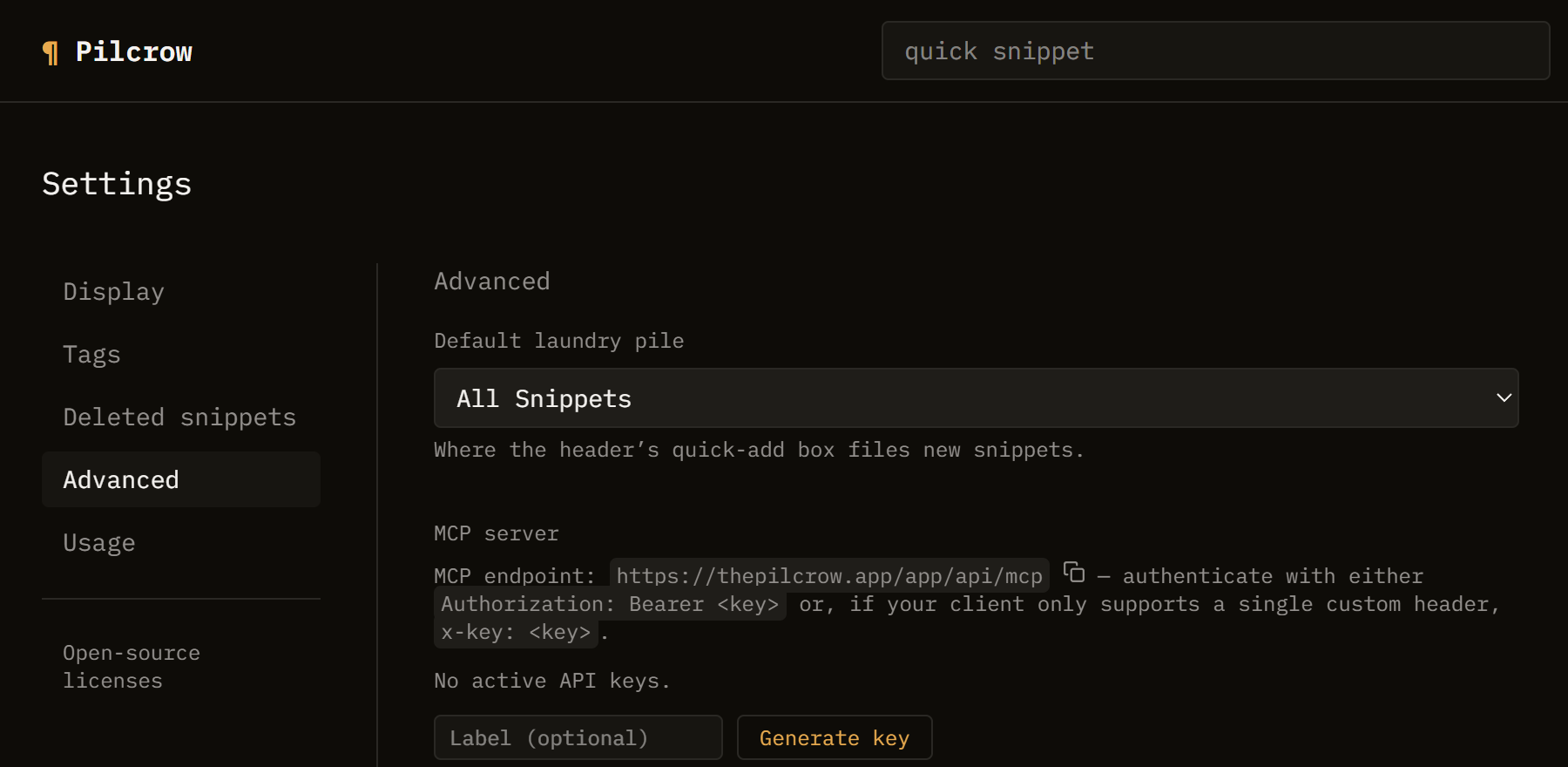
Copy that key in, and one field is left. snippetId is not on this screen, or any other. It has no settings page at all, because it is not a setting; it is the private, internal name Pilcrow gave one particular card the moment you created it. For that, you ask Claude.
3. Get your snippet ID from Claude
This is the part that feels a little like a magic trick. Create an empty snippet, call it “Weather”, and drop it into whichever pile you would like WxFeeder to update. Then, assuming Claude is already connected to Pilcrow’s MCP server using the key from the step above, simply ask it:
“get me the snippety ID for the Weather snippet in my general pile”
No dashboard, no developer tools, no digging through a network tab. Claude comes straight back with something along the lines of “that’s cmXXXXXXXXXXXXXXXXXXXXXXX, in your General pile.” Copy the id into snippetId and you are done configuring. (For anyone curious what Claude is actually doing behind that answer: two ordinary read-only calls, list_piles followed by list_snippets, both unpacked properly in the Advanced section below.)
4. Run it
npm start (or node src/run.js) fetches the latest observation and makes exactly two calls back to Pilcrow: update_snippet rewrites the markdown body, while set_manual_light_up recolours the card along a five-stop scale, blue through green, orange, yellow and finally red, interpolated directly from the temperature. Run it once and the card is already updated before you have finished reading this sentence.
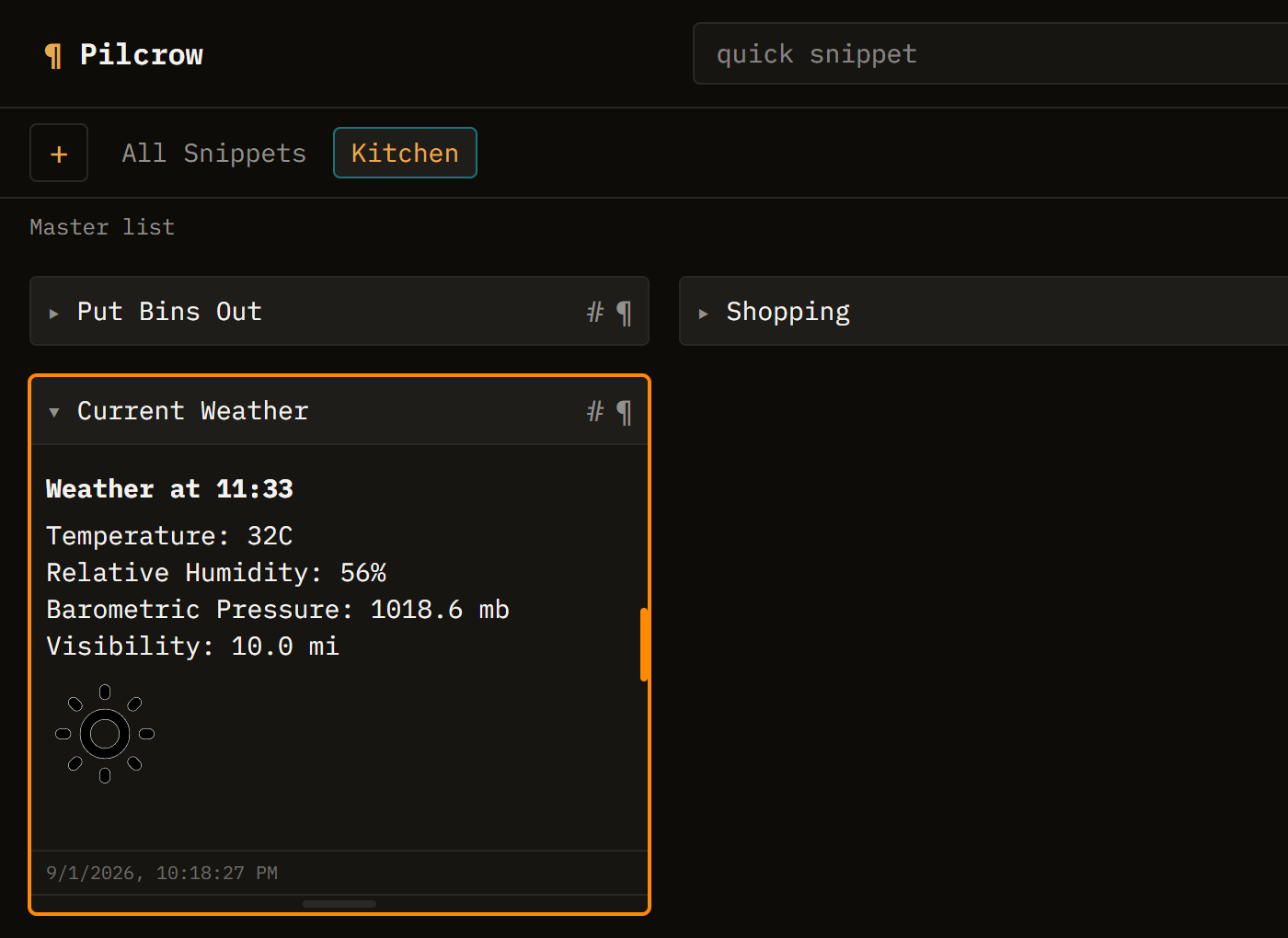
set_manual_light_up, not a theme setting.5. Put it on a schedule
A snippet that only updates when you remember to run a script is not much better than checking the weather yourself. scripts/Register-ScheduledTask.ps1 wires WxFeeder into Windows Task Scheduler under your own account, so it stops needing you altogether:
# every 30 minutes (default)
.\scripts\Register-ScheduledTask.ps1

# or pick your own interval
.\scripts\Register-ScheduledTask.ps1 -IntervalMinutes 15

# take it back out later
.\scripts\Unregister-ScheduledTask.ps1
That is the whole build. What follows is for anyone who has read this far and is already wondering what else they could point this at.
Advanced: how this actually talks to Pilcrow
WxFeeder has no idea what database Pilcrow runs on, or what framework renders the card. It knows exactly one thing: an MCP endpoint, reached in the identical way whether the caller is a scheduled task running unattended at three in the morning, or a person typing a question into Claude.
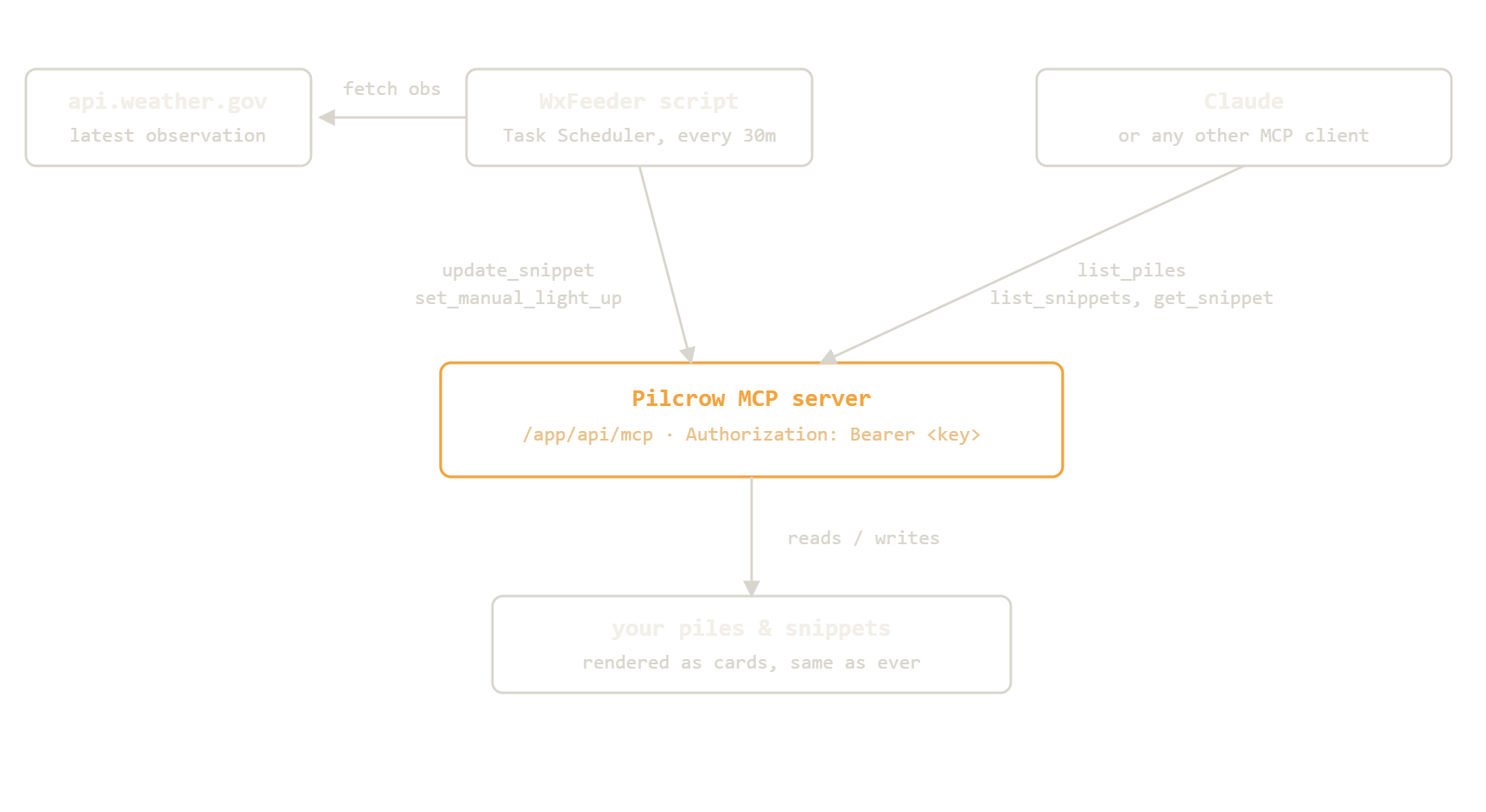
The two calls WxFeeder actually makes
Strip away the weather entirely and every run of WxFeeder is really just a short, polite exchange with Pilcrow, using the Model Context Protocol SDK’s Streamable HTTP transport:
const transport = new StreamableHTTPClientTransport(
  new URL(config.mcpUrl),
  { requestInit: { headers: { Authorization: `Bearer ${config.apiKey}` } } }
);
const client = new Client({ name: "wxfeeder", version: "1.0.0" });
await client.connect(transport);

await client.callTool({ name: "update_snippet", arguments: { id, markdownSource } });
await client.callTool({ name: "set_manual_light_up", arguments: { snippetId, color } });
That handful of lines is the entire integration surface. No Pilcrow-specific SDK, no secret sauce, just HTTP, a bearer token, and a couple of tool names that do exactly what they say.
Building your own feeder
The same endpoint will happily answer to rather more than the two tools WxFeeder bothers with:
update_snippet · set_manual_light_up · create_snippet · append_to_snippet · list_piles · list_snippets · get_snippet · create_pile · send_snippet_to_pile · attach_tag · create_tag · list_tags · set_light_up_schedule · set_auto_light_up_color
WxFeeder only ever reaches for two of them, on a timer, with no one watching. But the endpoint does not know or care whether it is being called by a cron job or by you, mid-conversation, which is really the whole point of the exercise: the very same MCP connection that lets Claude answer “what is my Weather snippet’s id” is the one your own script would authenticate against, using the same key. A few ideas that fit the same afternoon-sized project as this one:
- A CI status card, thrown red the instant a build breaks. That is
set_manual_light_upagain, fed by a webhook instead of a weather API. - A “next meeting in 12 minutes” snippet, rewritten from your calendar every few minutes with
update_snippet. - A standing tag query, built on
list_snippets({ tagId }), that gathers up every item you have tagged across every pile into one card, once a day.
Generate a key from the same Settings → Advanced → MCP server screen shown above, and the hardest part is already behind you.
WxFeeder is MIT licensed. Source: github.com/guruchill/wxfeeder