(Apologies to all Wilburys, travelling or stationary)
Pilcrow comes with a solid set of named colors for tags: reds, greens, blues, and all the other usual suspects. Most of the time, one of those named colors is precisely what you are looking for, and you can be done with a single click.
There will be occasions, however, when you want to color-code something a little more specific: a client’s own brand color, perhaps, or a shade that matches a notebook you already use, or simply a wish for your “Urgent” tag to be that particular shade of red and no other. For situations like these, every color picker in Pilcrow, whether you are coloring a tag or a light-up date, has a “Custom…” option sitting at the bottom of the list.
Click through to it, and you are offered two different ways of tracking down the color you want.
Colors: pick from the box
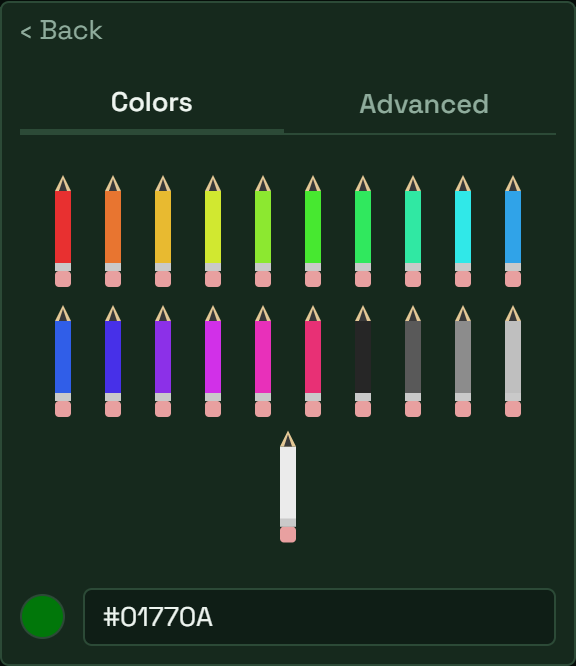
The first tab presents you with a box of colored pencils, quite literally. There are sixteen hues sweeping round the color wheel, along with five grayscale pencils for those times when you would rather have something more muted. Click a pencil, and you have your color. It is a quick way of choosing, and there is something rather pleasing about it.
Advanced: getting it exactly right
If you need the precise hex value for a client’s particular shade of blue, the Advanced tab sets the pencils aside in favor of a saturation and lightness pad, a hue slider, and separate red, green, and blue sliders, all of which are linked together so that adjusting any one of them updates the rest immediately. There is also a hex input at the bottom, for anyone who already knows the exact code they are after.
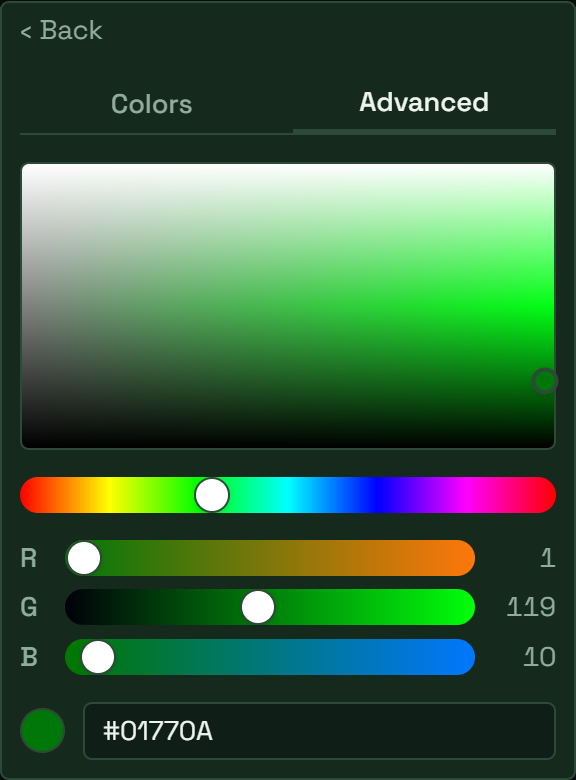
Whichever route you take to get there, the swatch preview updates as you go, so you always know precisely what you are about to apply before you commit to it.
It is a small feature in the scheme of things, but it means your tags, and your light-up dates, can match whatever system you already carry around in your head, rather than the other way about.