Most of what goes into Pilcrow is personal, but not all of it. A packing list for a trip, a shared shopping list, a project you’re running with someone else — some snippets only make sense with more than one person looking at them. Shared piles are how you let someone else into a specific corner of your Pilcrow without handing them your whole account.
Inviting someone in
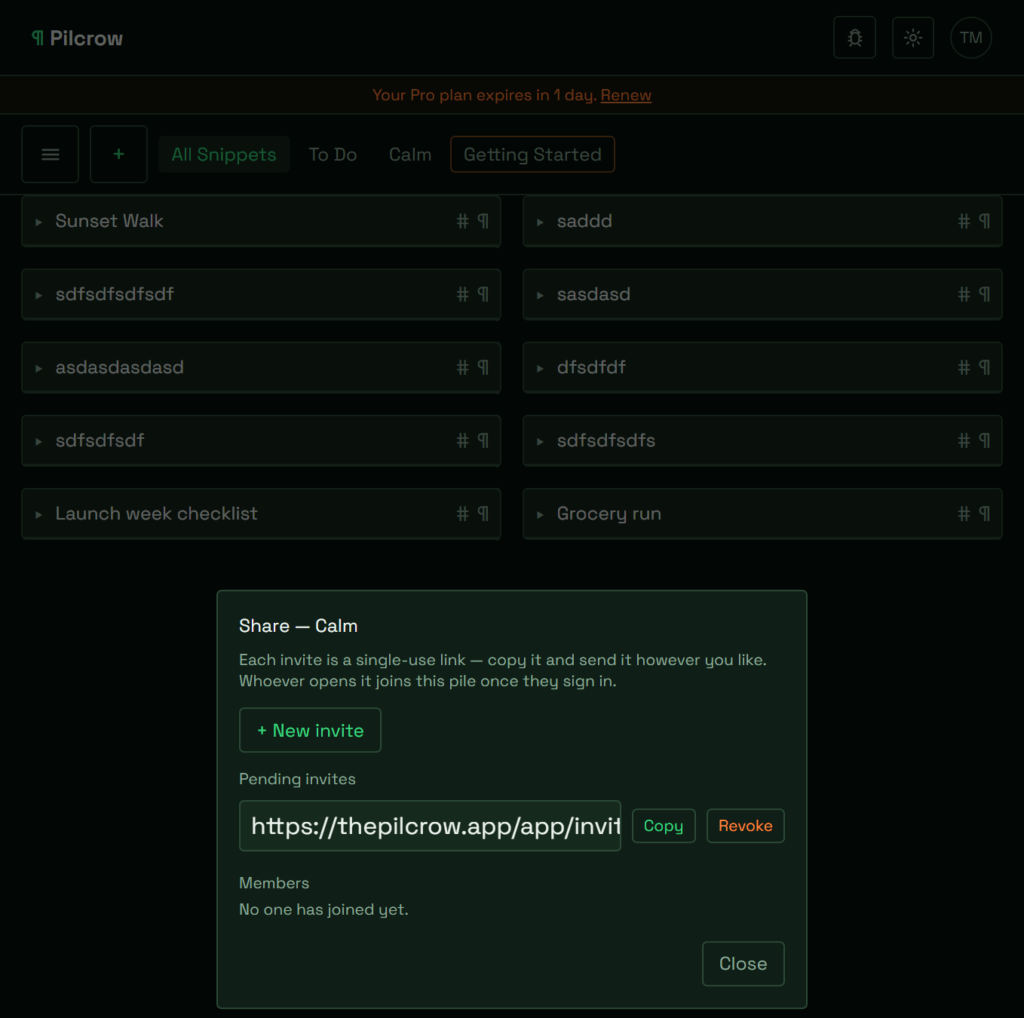
Right-click the tab of the pile you want to share (long-press on touch devices) and choose Share…. That opens a dialog for that pile with a + New invite button. Each click creates a fresh, single-use link, shown in a copyable field — click Copy and you’ll get the link along with a short “Join my shared pile on Pilcrow” message ready to paste into an email or a chat. If you generate a link and change your mind, a Revoke button next to it kills it before anyone’s used it.
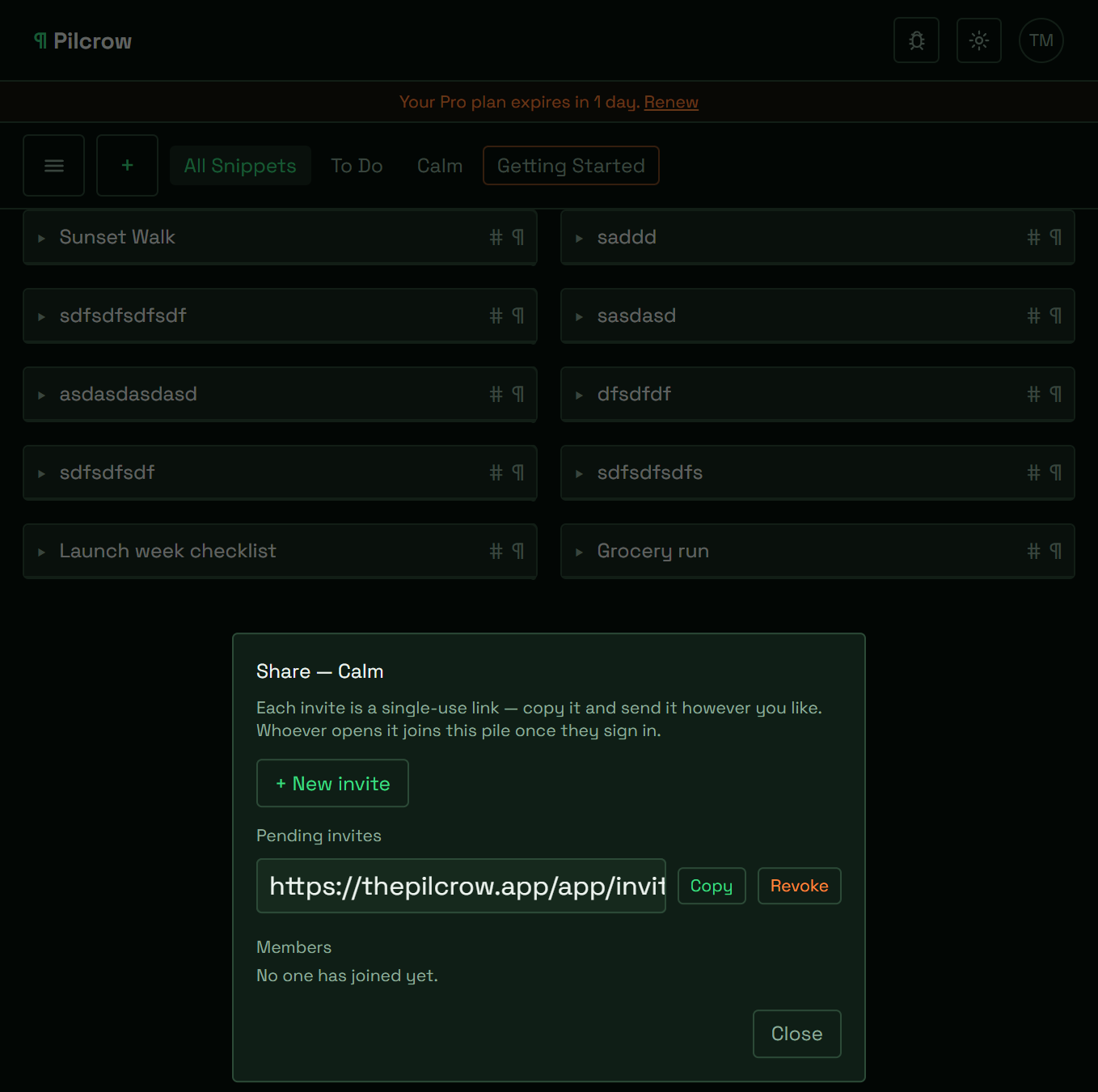
The link only works once. Whoever you send it to signs in (or creates an account, if they don’t have one) and lands straight in the pile — there’s no separate “accept” screen to click through. If the link’s already been used or revoked, they’ll see a message telling them it’s no longer valid instead.
Who can do what
The Share dialog also lists everyone who’s joined the pile, each with a Can edit checkbox you control. Turn it on and that person can add and change snippets in the pile; leave it off and they can only look. There’s one extra condition worth knowing: contributing to a shared pile requires the invited person to be on a Pro tier too, even if you’ve switched “Can edit” on for them. If they’re not, they’ll see the pile as read-only until they upgrade — nothing else needs to change on your end once they do.
Only the owner can rename the pile, delete it, archive it, or manage its members. Someone the pile’s been shared with can use it (and contribute, if they have edit access) but doesn’t get any of that — the only option on their side is Leave shared pile.
Spotting a shared pile at a glance
Any pile with someone else in it gets a subtle coloured ring around its tab, visible to you as the owner as well, so you always know which of your piles other people can see without having to open the Share dialog to check.
Leaving or removing someone
A member leaves through the same right-click menu they used to find the pile in the first place. As the owner, you can remove someone directly from the Share dialog. Either way, only their membership goes — anything they’ve already added to the pile stays put. Deleting the pile entirely removes everyone’s access at once, invites and all.
Before you start
Sharing a pile is a Pro feature — you’ll see an upgrade prompt if you try to share on a free account. The default All Snippets pile can’t be shared at all, since it isn’t really “a” pile so much as everything you own in one place.