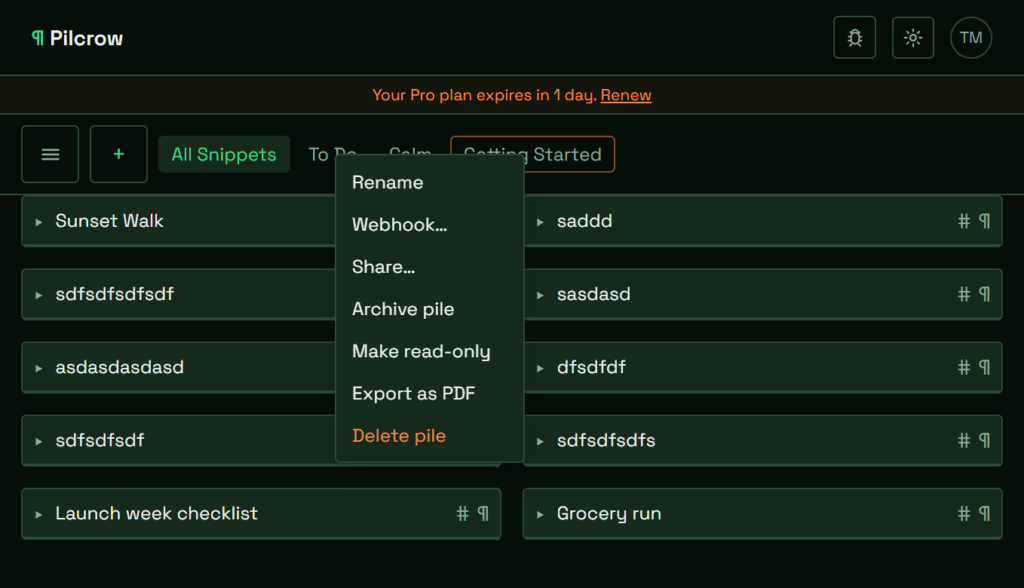
Every Pilcrow account ends up with piles you don’t need to see every day. Maybe it’s a trip that already happened, a project that wrapped up, or a pile you made just to test something out. You don’t want to delete it — there might be a snippet in there you’ll want again — but you also don’t want it cluttering up the tab row every time you open the app. That’s what hiding a pile is for.
What “hiding” a pile actually does
In the interface the action is called Archive pile, and the effect is exactly what you’d expect from the word “hidden”: the pile’s tab disappears from the row at the top of your feed. Any snippet that belongs to that pile disappears too — not just from inside the archived pile, but from everywhere else it happens to live as well, including your default All Snippets view and any other pile it’s also a member of. Nothing is deleted. The snippets are still there; they’re just tucked out of sight until you go looking for the pile they came from.
How to hide a pile
Right-click a pile’s tab (or long-press it if you’re on a phone or tablet) and choose Archive pile from the menu. There’s no confirmation step — it hides immediately. If you happen to be looking at the pile you just archived, you’ll land back on All Snippets, since the tab you were viewing has just vanished from the row.
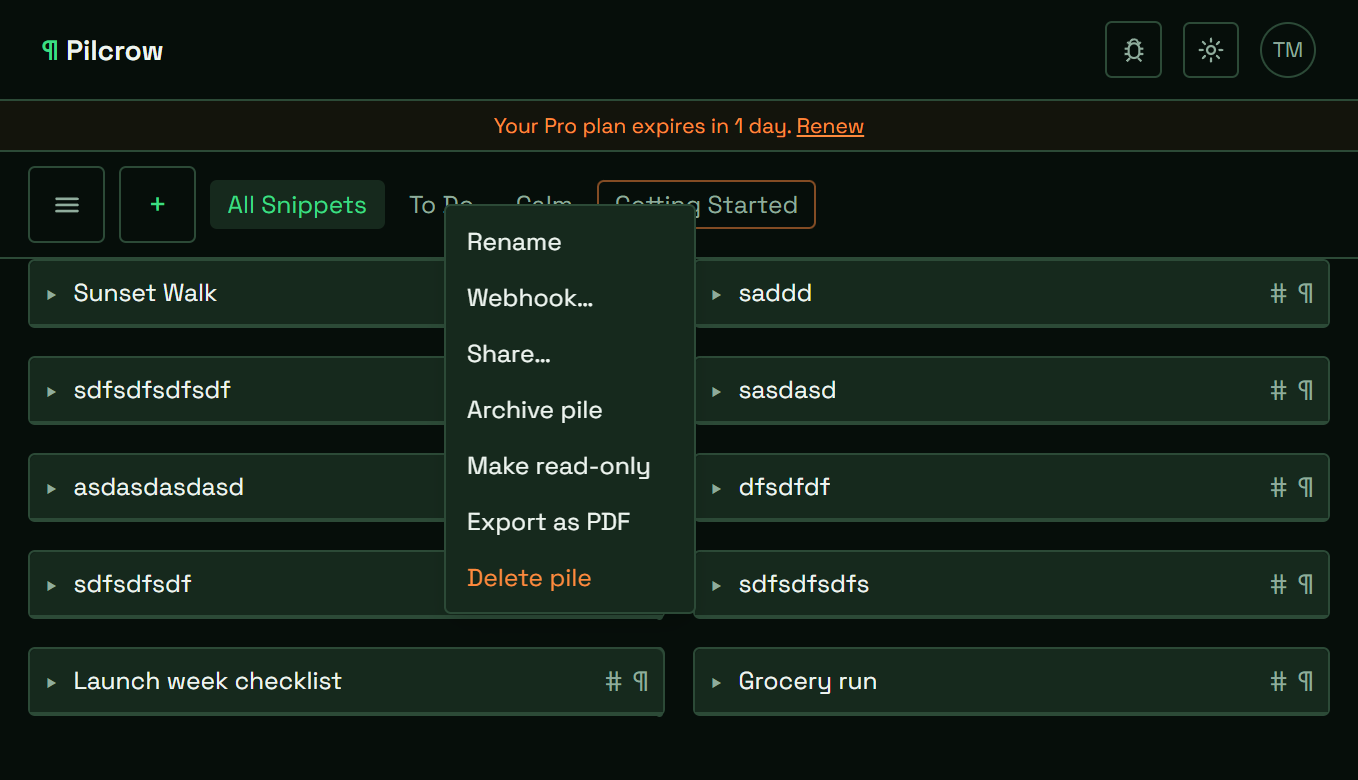
To bring a pile back, open the same context menu and the option will now read Unhide. Click it and the pile, and every snippet in it, reappears exactly where it left off.
Finding a pile you’ve already hidden
Right-click the All Snippets tab itself and you’ll find an Archived piles submenu listing every pile you’ve hidden by name. Picking one from that list takes you straight to it — it doesn’t automatically unhide it, so you can go back for a quick look without dragging it back into your everyday tab row.
A couple of exceptions
All Snippets itself can’t be archived, since every snippet you own lives there regardless of which other piles it also belongs to. And if a pile has been shared with you rather than owned by you, archiving isn’t offered — you’d use Leave shared pile instead, which removes it from your view entirely rather than just hiding it. The one exception is the “Getting Started” pile every account starts with, which can’t be left, so it gets the same Archive/Unhide toggle as your own piles instead.
Where else hidden piles stay out of the way
Once a pile is archived, it’s also left out of every quick picker in the app — Send to pile, Move to pile, the default pile you set in your settings, even the drag-to-reorder list of tabs. The only place it shows up at all is that Archived piles submenu, exactly where you’d expect to find something you put away on purpose.