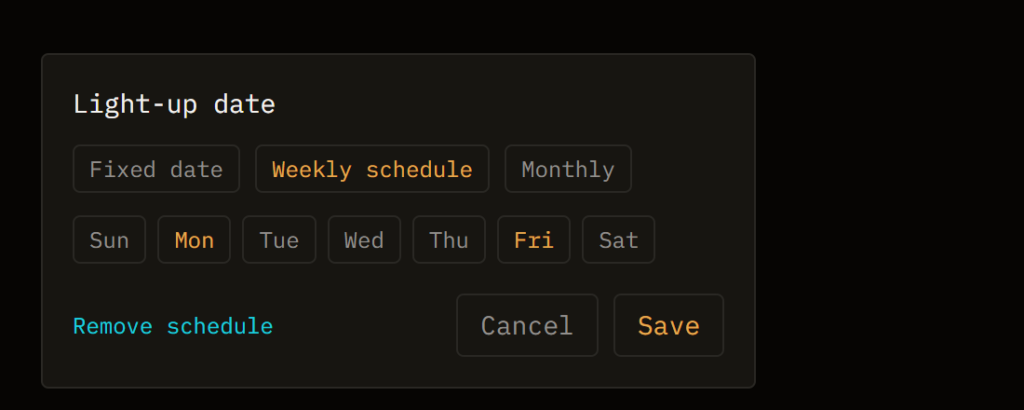
Some snippets matter more than others, at least for a while. A note you need to act on today, a list you check every Monday, a reminder that only matters on one specific date — light-up is Pilcrow’s way of making a snippet visually impossible to scroll past, without touching anything else about it.
What “lighting up” a snippet does
A lit-up snippet gets a coloured outline around its card, so it stands out from everything around it at a glance. That’s the whole effect — there’s no notification, no email, nothing added to a calendar. It’s a highlighter, not an alarm, which means it only works if you’re the kind of person who’ll actually look at the board it’s sitting on.
Lighting up a snippet right now
Open a snippet’s menu and choose Light up, then pick one of seven preset colours. The outline appears immediately and stays until you go back to that same menu and choose Remove light-up. This half of the feature is free on every tier and has nothing to do with dates at all — it’s just a way to flag one snippet as more important than its neighbours, whenever you decide that’s true.
Lighting up on a schedule
The other half is date-driven, and it’s a Pro feature. Choose Light-up date… from the same menu and you’ll now find three options: a fixed date, a weekly schedule, or a monthly one.
Fixed date
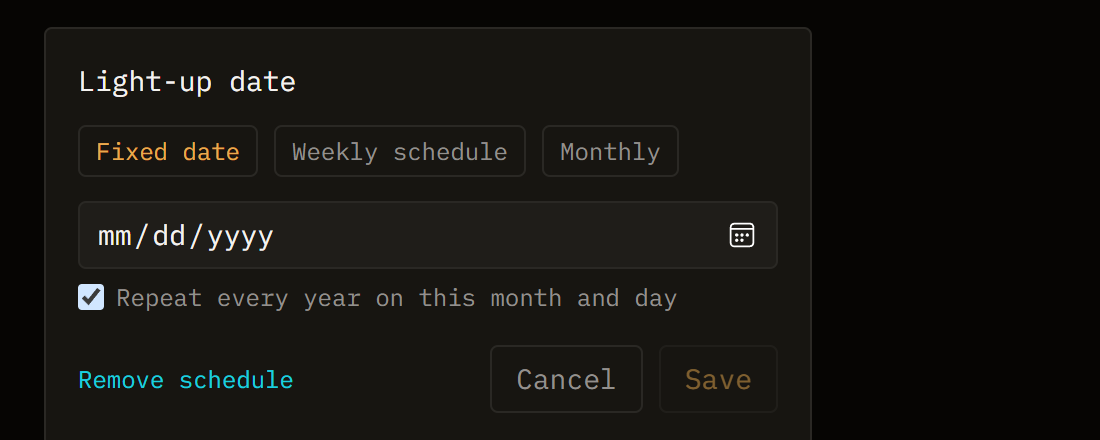
Pick a single date and the snippet lights up on that day. Tick Repeat every year on this month and day and it stops being a one-off: the same date lights the snippet up again every year after, which makes this the right tool for a birthday or an anniversary, rather than only a reminder that fires once and never comes back.
Weekly schedule
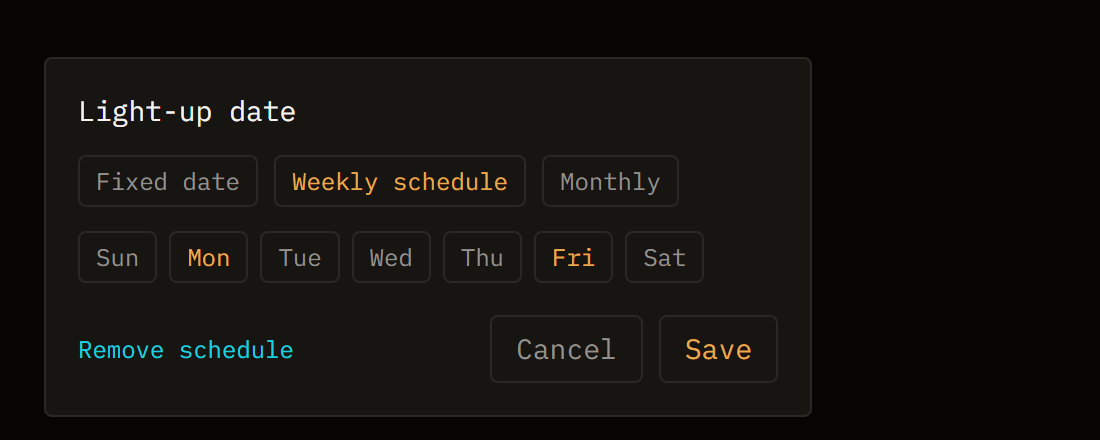
Tick off one or more days of the week and the snippet lights up on each of them, every week, indefinitely. Tick Monday, and the snippet lights up every Monday from then on.
Monthly
New alongside the two options above: pick one or more days of the month, from 1 to 31, and the snippet lights up on each of those days, every month. It’s the one to reach for when something matters on a particular day of the month rather than a particular day of the week — paying rent on the 1st, say, or reviewing subscriptions on the 15th.
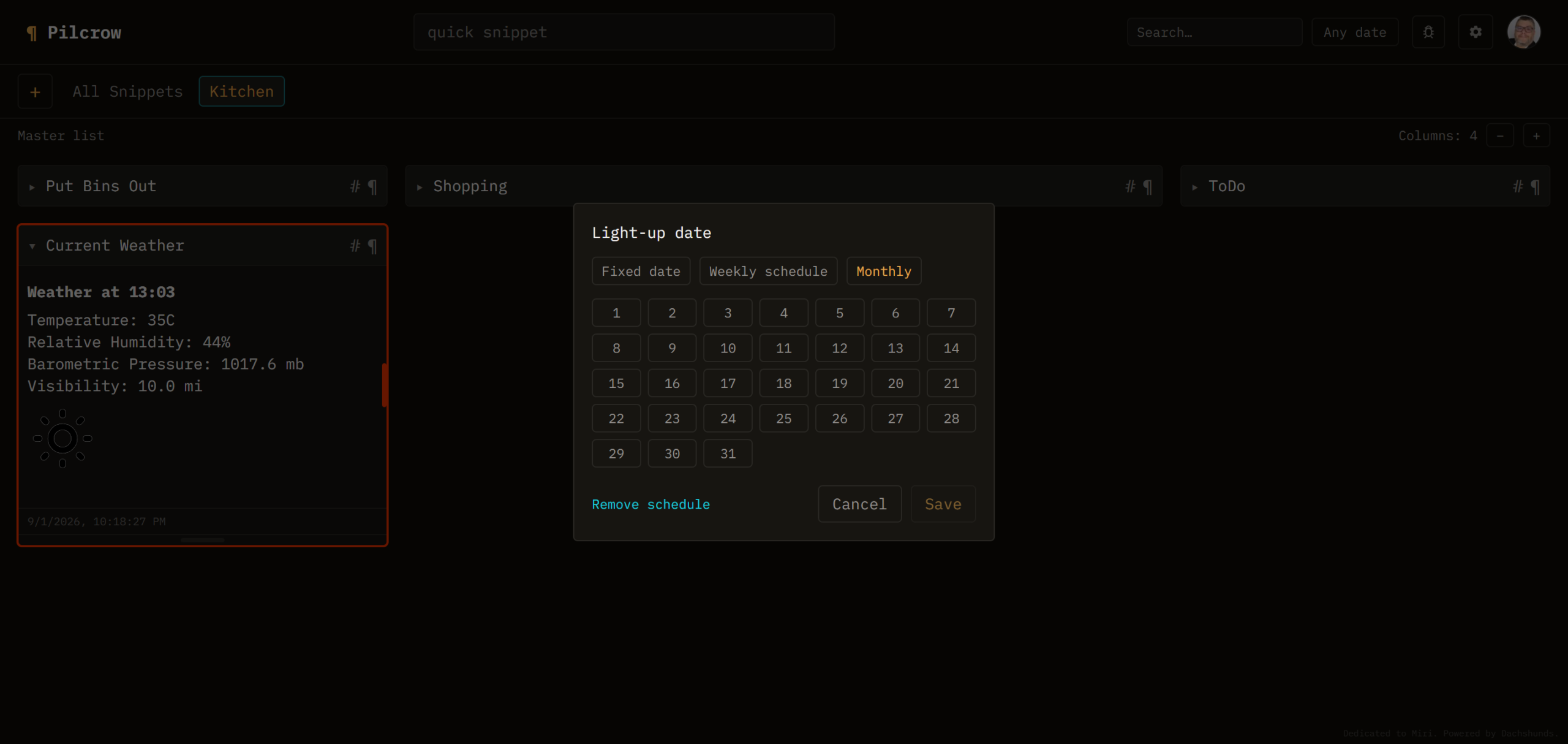
Whichever of the three you choose, scheduled light-ups use one colour across the board, rather than letting you choose per snippet: whatever you’ve set as your automatic light-up colour in Settings, on the Tags page. Set it once and every scheduled light-up will use it, regardless of which of the three types triggered it. Manually lighting up a snippet from its own menu still lets you pick any of the seven colours regardless of that setting.
To stop a scheduled light-up, open the dialog again and choose Remove schedule.
One thing to remember
Because it’s purely visual, light-up is only as useful as your habit of looking at Pilcrow. If you rely on it for anything time-sensitive, pair it with actually checking the pile it lives in — nothing will chase you down if you don’t.