Pilcrow has an MCP server of its own, which means Claude can read and write your snippets and piles directly, in whatever conversation you’re already having. No separate app to open, no copy-pasting a to-do item across from a chat — just tell Claude what you want added, moved, or tagged, and it talks to Pilcrow on your behalf.
What you’ll need
The MCP server is a Pro feature. New accounts get full access to it (and everything else on Pilcrow’s best tier) for a trial period after signing up, so it’s worth trying before you decide whether it’s worth keeping. You’ll also need to be able to sign in to your Pilcrow account, because that is how you approve the connection.
Step 1: add the connector
Pilcrow’s MCP endpoint is:
https://thepilcrow.app/app/api/mcp
Add it as a custom or remote MCP connector wherever you’re using Claude: claude.ai, Claude Desktop, and Claude Code all support adding one by URL. The URL is all you need. There is no key to generate and nothing to paste into a header, because Pilcrow supports OAuth and Claude will walk you through signing in.
Step 2: sign in and approve
The first time Claude connects, it sends you to Pilcrow. If you aren’t already signed in, you’ll be asked to sign in first, and then you’ll be brought back to a short approval screen. That screen shows the name of the app asking for access, tells you it wants to access your snippets, tags and piles, shows which account you’re signed in as, and says which address you’ll be sent back to afterwards. Choose Approve to connect, or Deny to back out.
If your account isn’t on a plan that includes the MCP server, you’ll see a message saying a Pro plan is needed instead of the approval screen.
Managing connected apps
Head to Settings > Advanced and find the MCP server section. Under Connected apps you’ll see every app you’ve approved, along with when each one was last used, and a Revoke link next to each. Revoking cuts that app off straight away, and it has to go back through the approval screen if you want to reconnect it later.
Prefer a key?
If your client doesn’t support OAuth sign-in, you can connect with an API key instead. In the same Settings > Advanced section, give the key an optional label if you’ll be creating more than one (a work laptop and a personal one, say), then click Generate key. The key is shown to you exactly once, in a field you can click to select and copy — copy it immediately, because Pilcrow only stores its hash, not the key itself, so there’s no way to retrieve it again later. If you lose it, generate a new one; the old one still works until you revoke it.
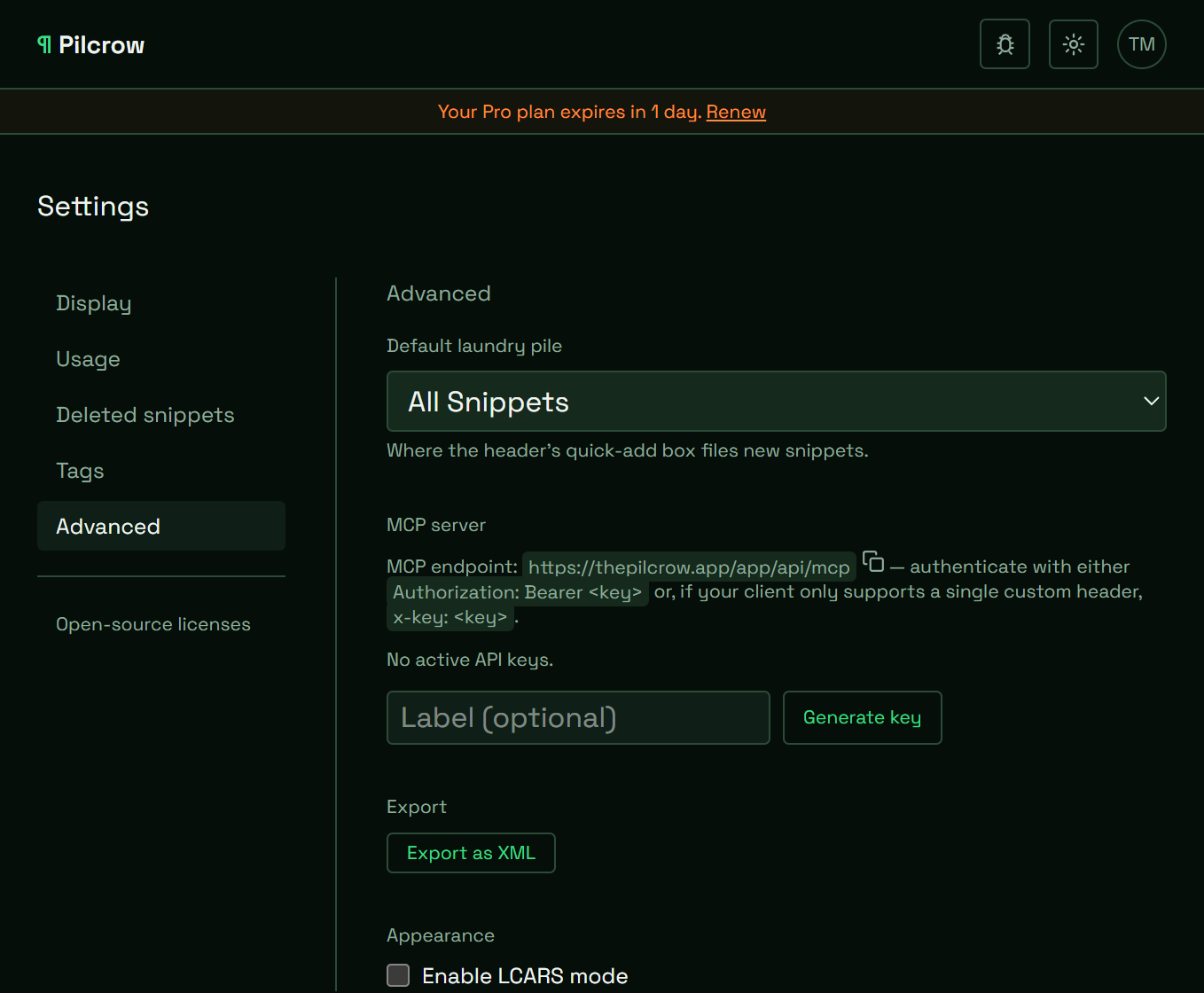
Use your key as an Authorization: Bearer <your key> header. If whatever you’re using only supports a single custom header, Pilcrow also accepts x-key: <your key> instead — pick whichever one your client asks for. The same settings section lists every key you’ve created, along with when it was last used, and a Revoke link if you ever want to cut one off.
What Claude can actually do once it’s connected
Once the connector’s in place, Claude can look through your existing snippets and piles, read a specific snippet in full, and create new notes, lists, or links on your behalf. It can add to a note or list you already have without overwriting what’s there, attach an existing tag to a snippet or create a new one, and create or rename a pile and file a snippet into it.
It deliberately can’t delete anything — no snippet, no pile, no tag. That’s by design, not a gap: deleting things stays an in-app-only action, so a stray instruction in a conversation can’t accidentally take a pile with it. It also can’t touch a pile you’re only a read-only member of, for the same reason it can’t in the app itself.
What this actually looks like
In practice it’s as simple as asking, in the middle of whatever else you’re talking to Claude about, to add something to a specific pile, tag a note, or check what’s already in your grocery list — and having it just happen, the same way it would if you’d opened Pilcrow and done it by hand.