Everything that you store in Pilcrow is a snippet. Currently there are four types of snippet in Pilcrow: the note, the list, the link, and the image.
Notes
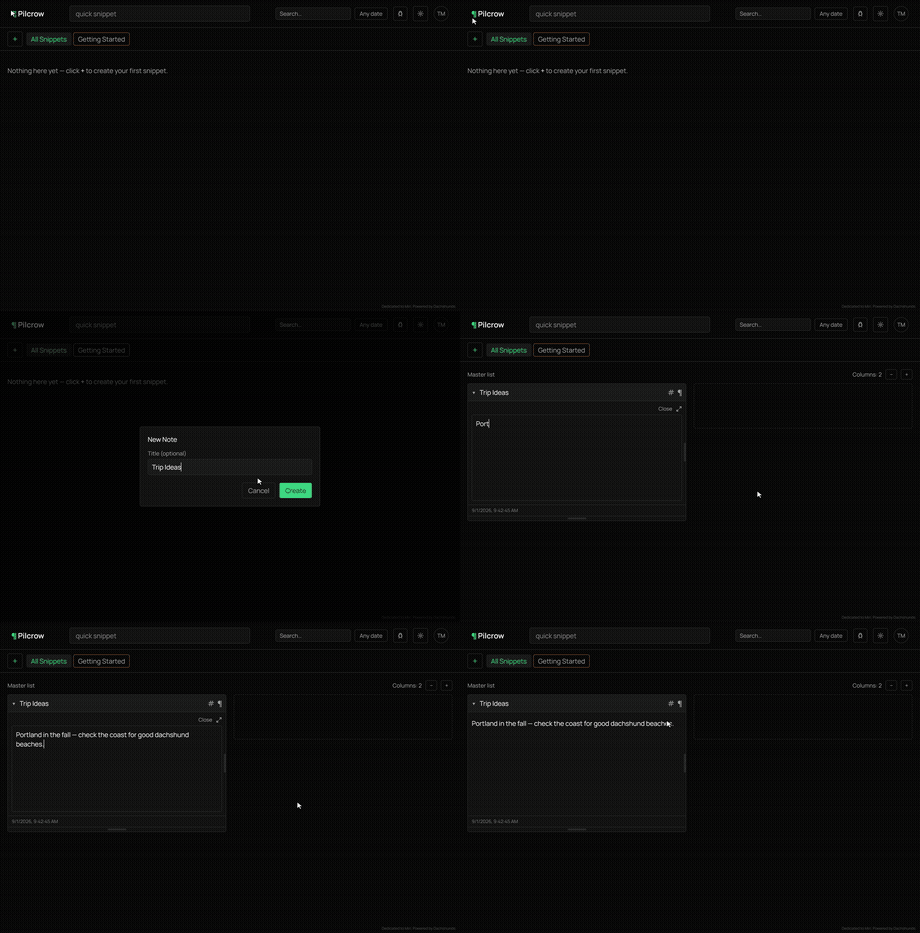
A note snippet is the easiest type to get started with. Just click on the ‘Add’ icon, select note, and give it a title if you want. (Titles are optional, and you can always edit them at a later date).
Lists
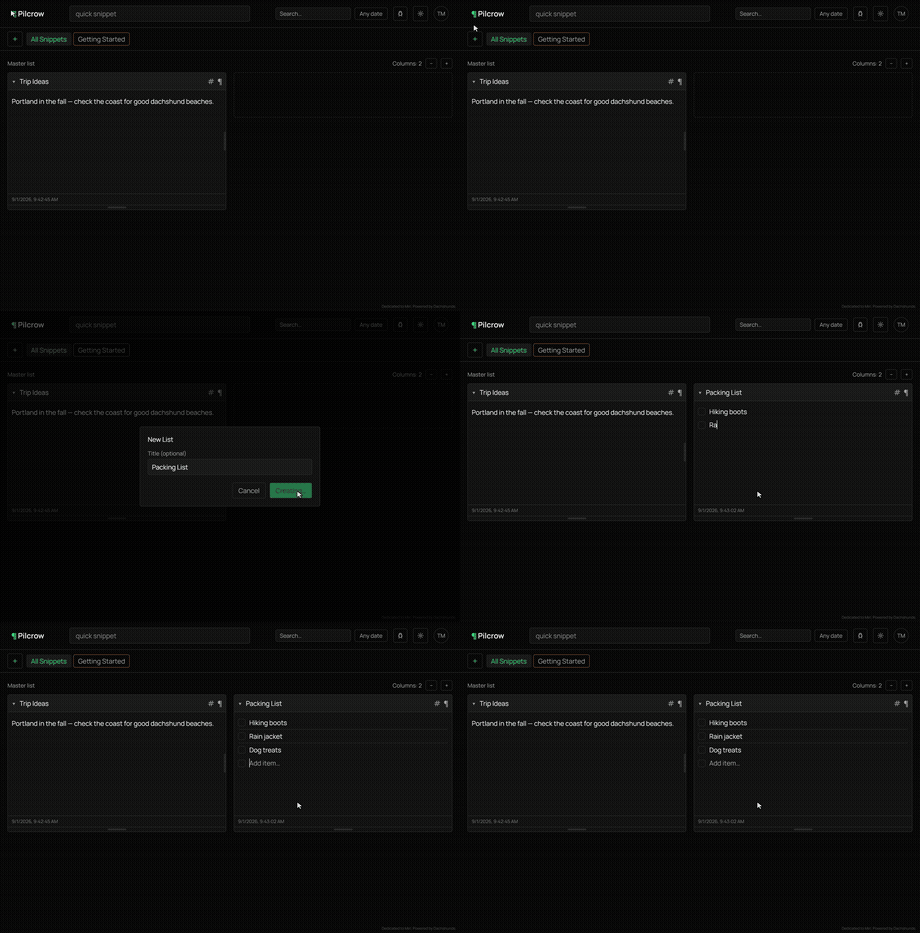
A list snippet is for anything that’s naturally a collection of individual items, such as a shopping list, a packing list, or a set of tasks. Click on the ‘Add’ icon, select list, and add each item on its own line. You can add, remove, or reorder items at any time.
Images
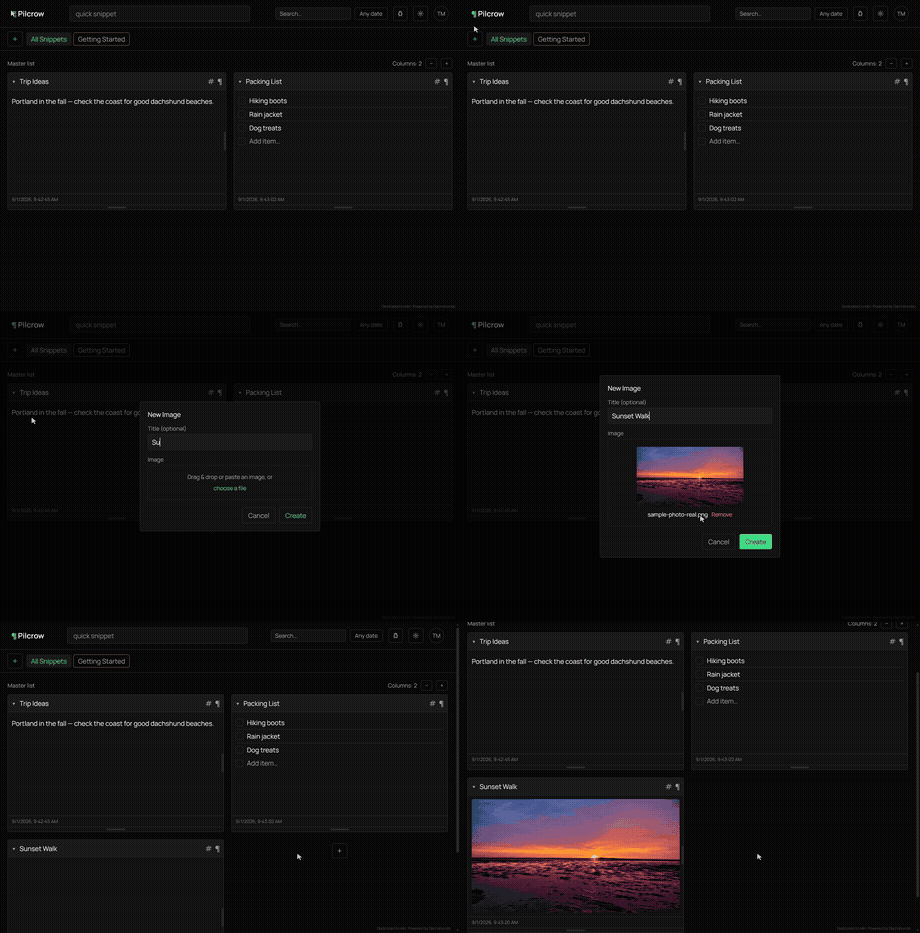
Image snippets let you save a picture alongside your other content. At present, images can only be added directly within the app rather than through an integration, so click ‘Add’, select image, and choose a photo from your device.
Links
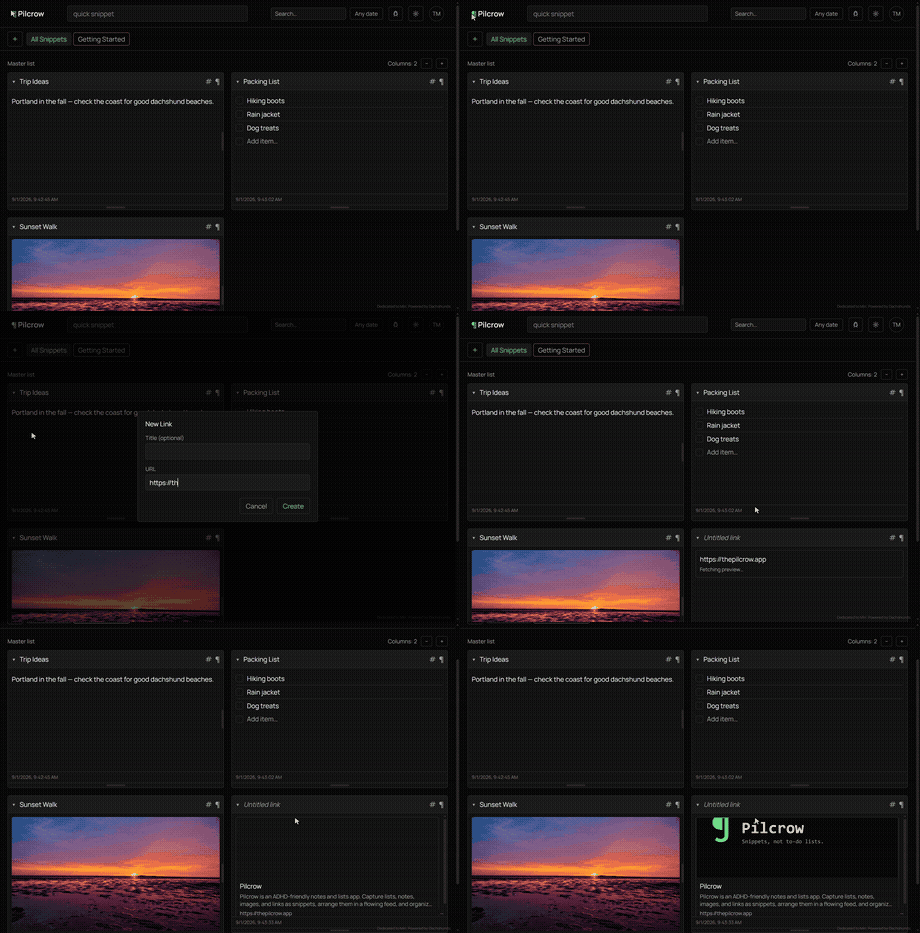
A link snippet stores a web address for later reference. Click ‘Add’, select link, and paste in the URL you want to save. Pilcrow will attempt to fetch a preview title for the page automatically, though you can always overwrite this yourself.
Send to a pile
If I click in the Pilcrow menu I can send this snippet to another pile. A snippet can be sent to any number of piles, or can simply float and only be shown in the ‘All Snippets’ pile.
Light Up
Need to make a snippet stand out? You can select Light Up Pile and choose a color—your snippet becomes highlighted. If you’re a subscriber to Pilcrow Pro, you can set a light-up date for your snippet, either a specific date or on a regular weekly schedule.
1 comment